WeProxy IPv6 Panel User Guide
After you receive your panel account, follow these steps to add servers, create proxies, and connect WiseCP. Screenshots are taken from the live English panel UI.
1. Sign in
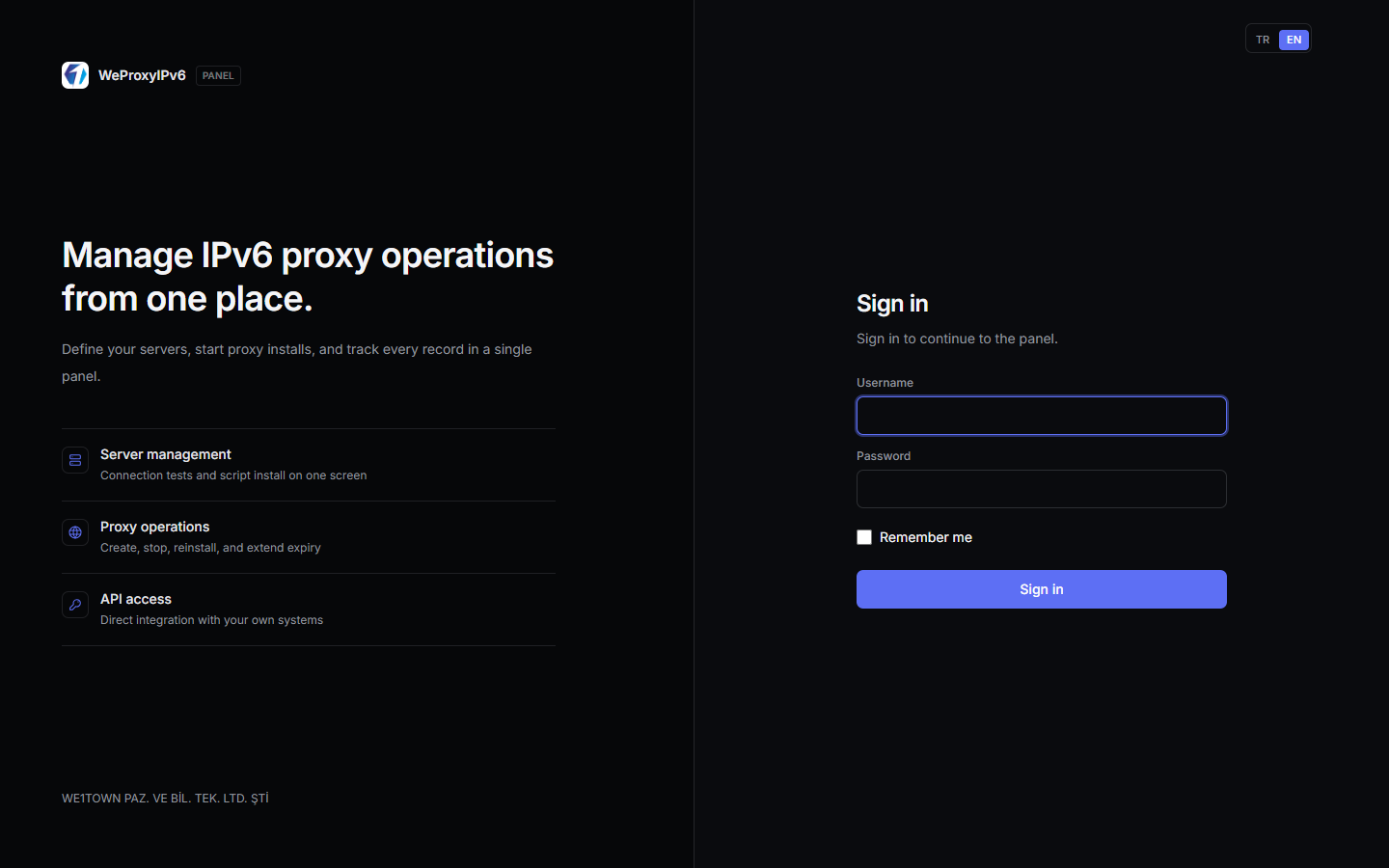
Open the panel URL you were given. Enter your username and password, then click Sign in. Use TR / EN at the top right to switch language. The username is not an email address.
2. v6 script license code
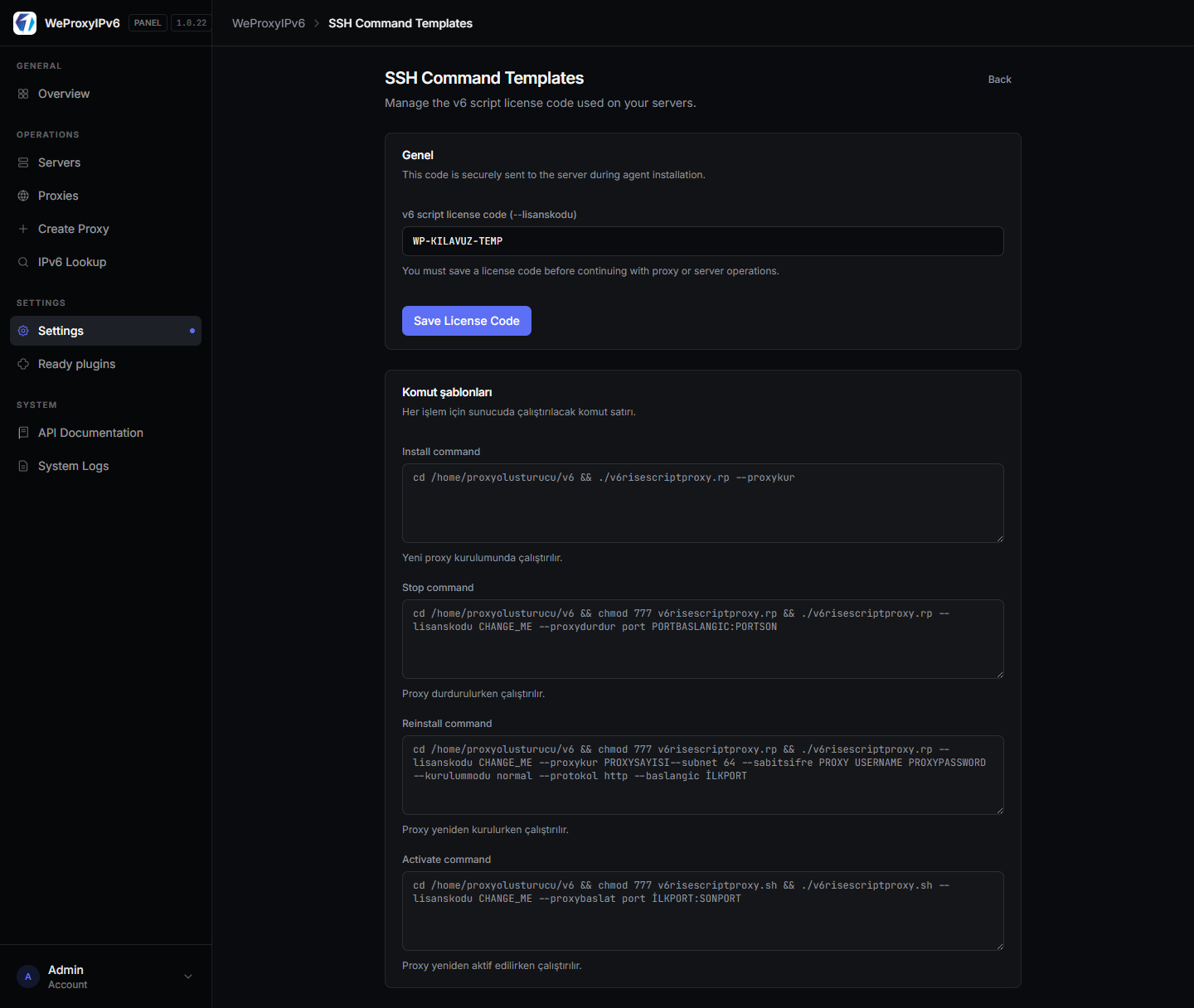
If you see a red warning, go to Settings → SSH Command Templates. Replace CHANGE_ME with the v6 script license code you received and click Save License Code. Server and proxy operations stay locked until this is saved.
3. Overview
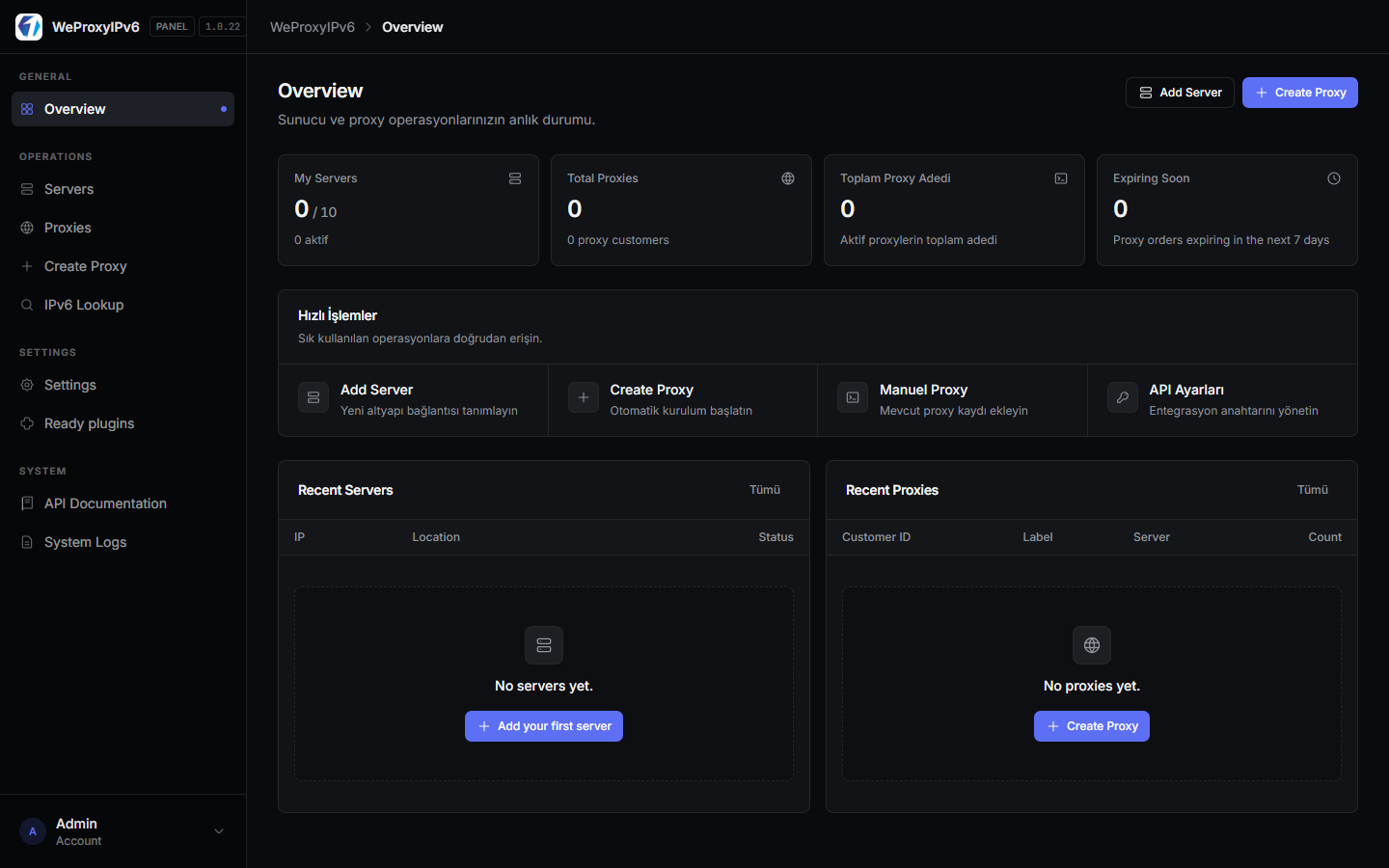
The overview cards show your server quota, proxy counts, and orders expiring soon. Start with Add Server, then Create Proxy. Use API settings for the integration key.
4. Add a server
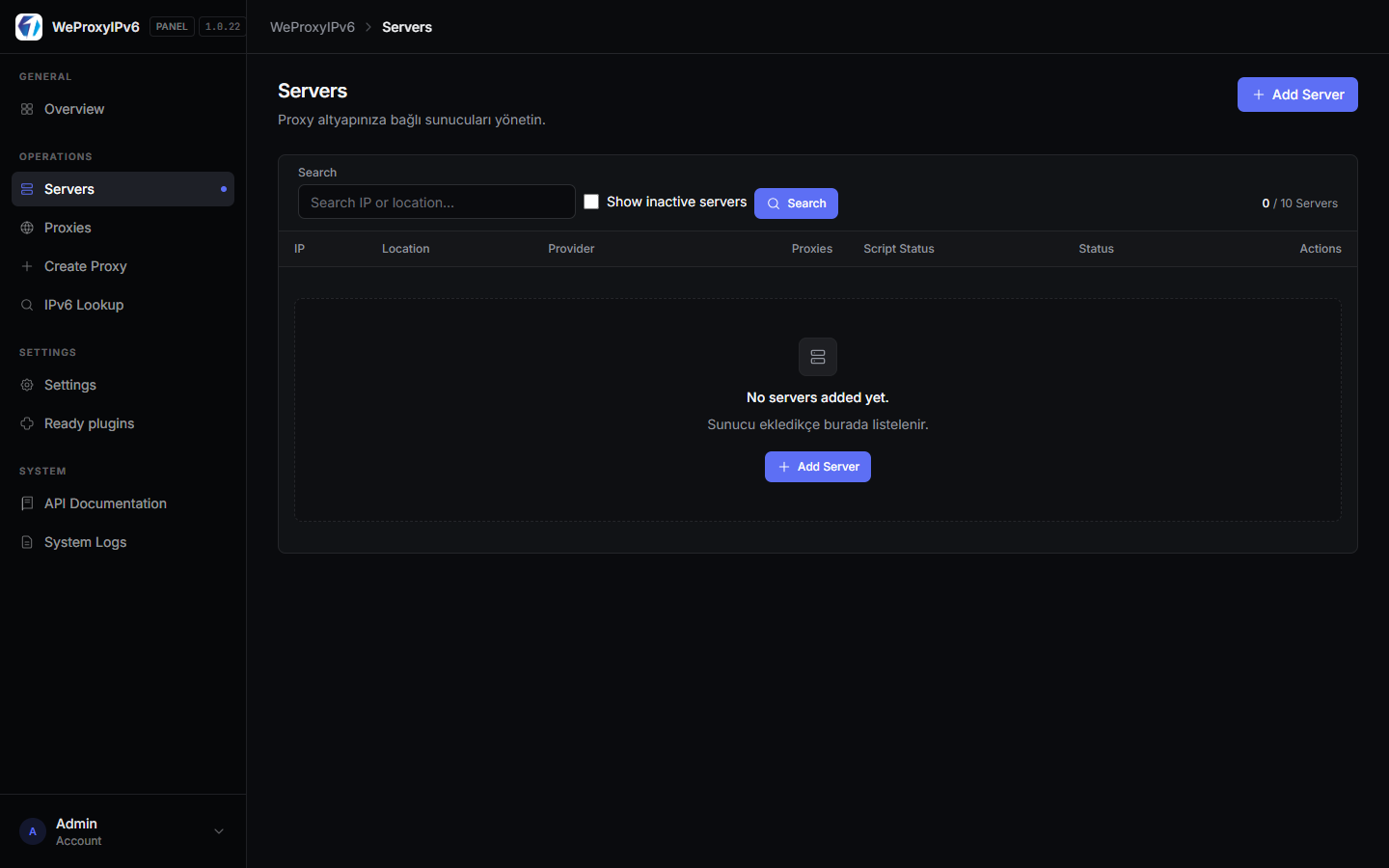
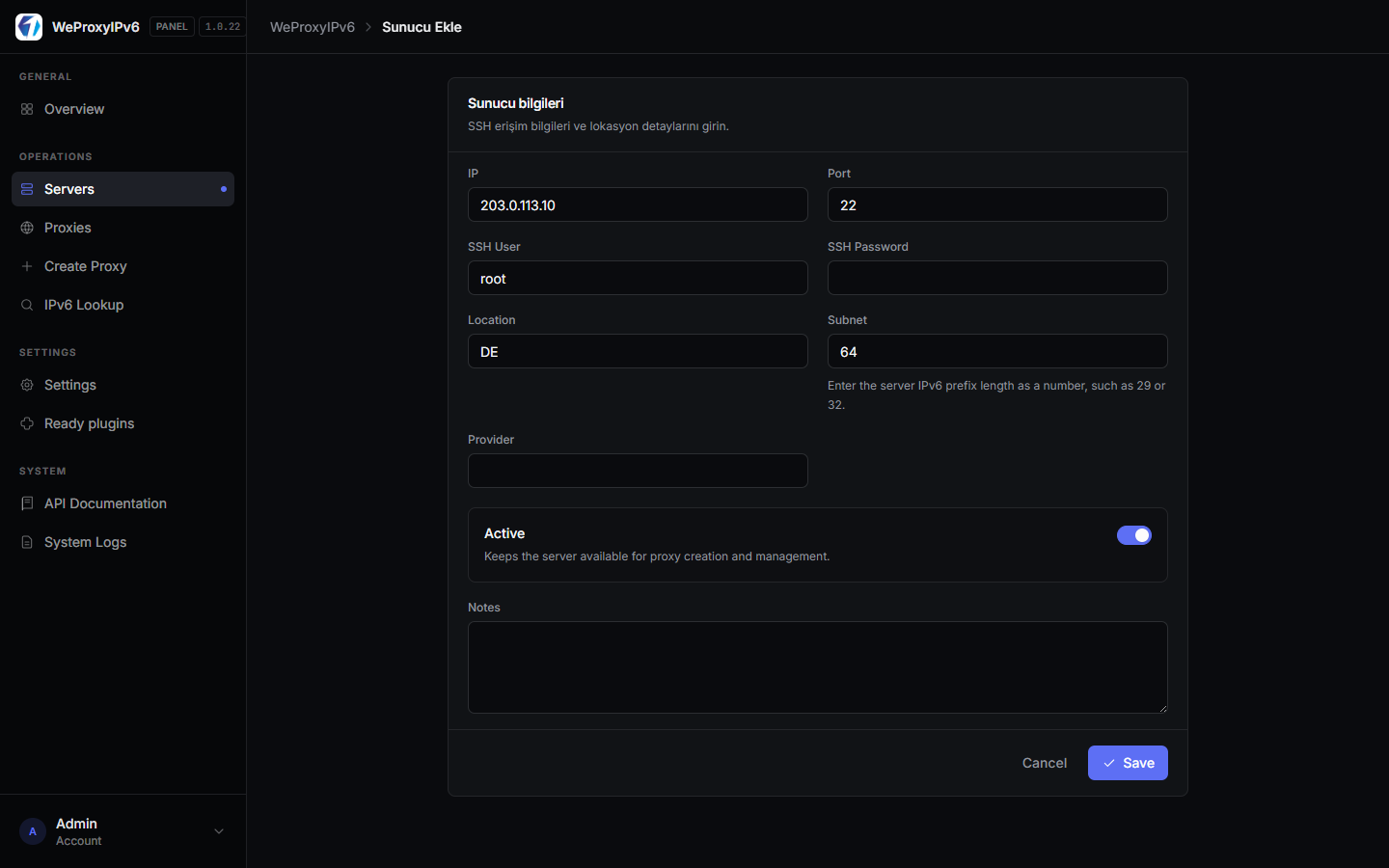
Open Servers and click + Add Server. Enter IP, SSH port, user, password, location (for example DE, TR), and IPv6 prefix length, then save. After that, test the connection and run Install Script for IPv6 Script.
5. Create a proxy
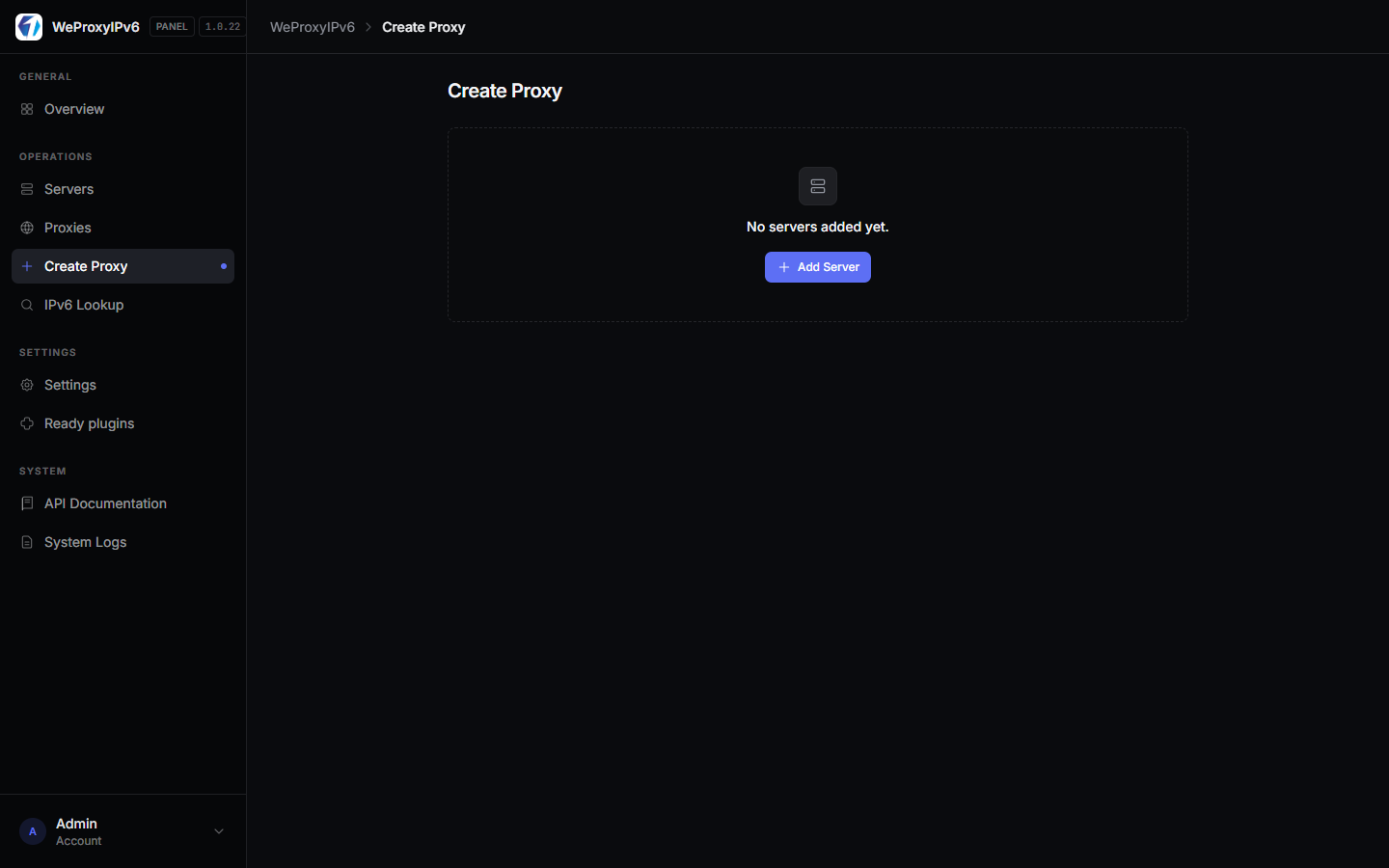
You need at least one server with the script installed. Use + Create Proxy, pick a server or location, then set label, count, username, password, protocol (HTTP/SOCKS), and rotation (static, per request, or interval). Do not close the page until the job finishes.
From the details page you can stop, activate, reinstall, refresh IPv6, extend expiry, and copy lists.
6. Add a proxy manually
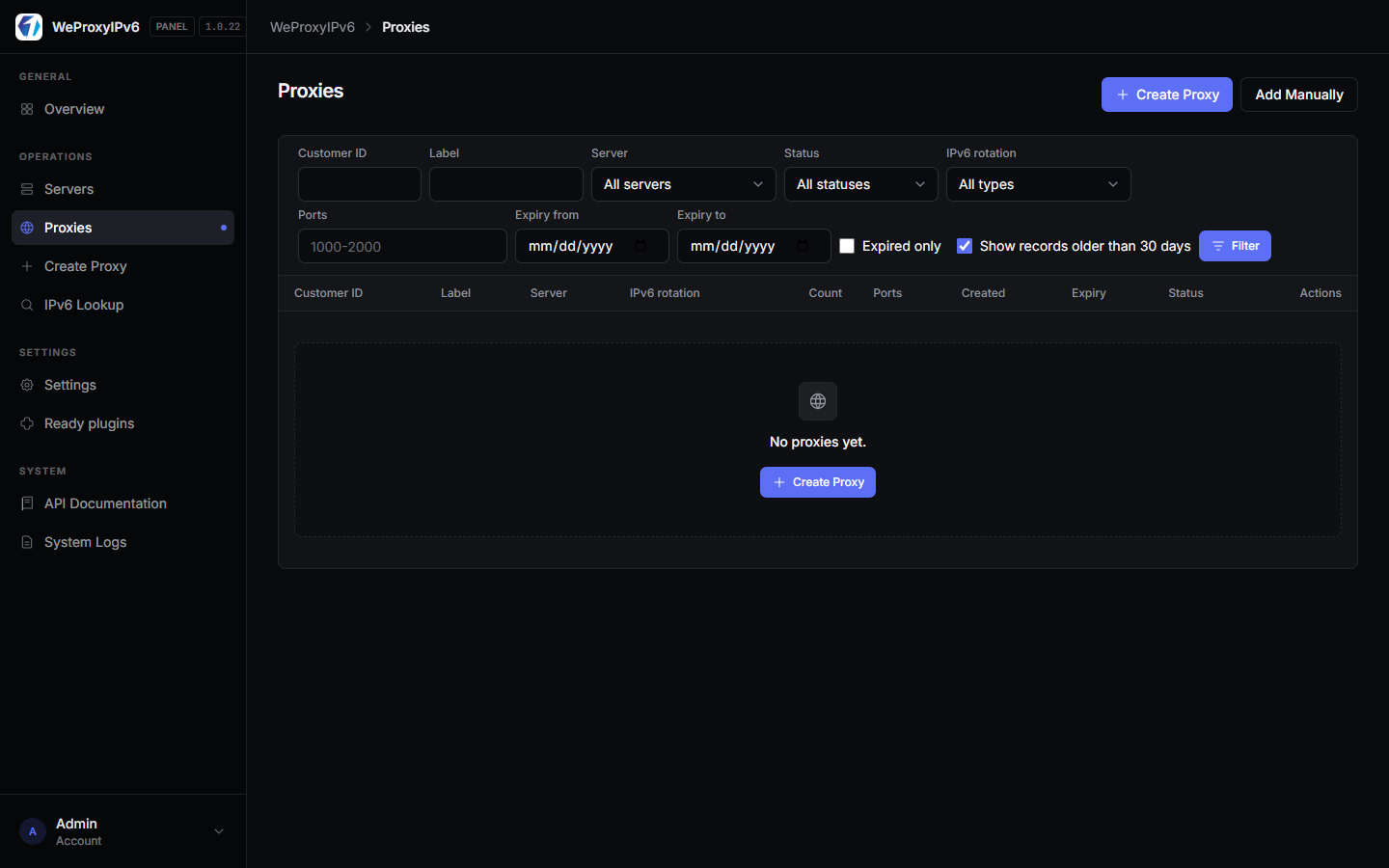
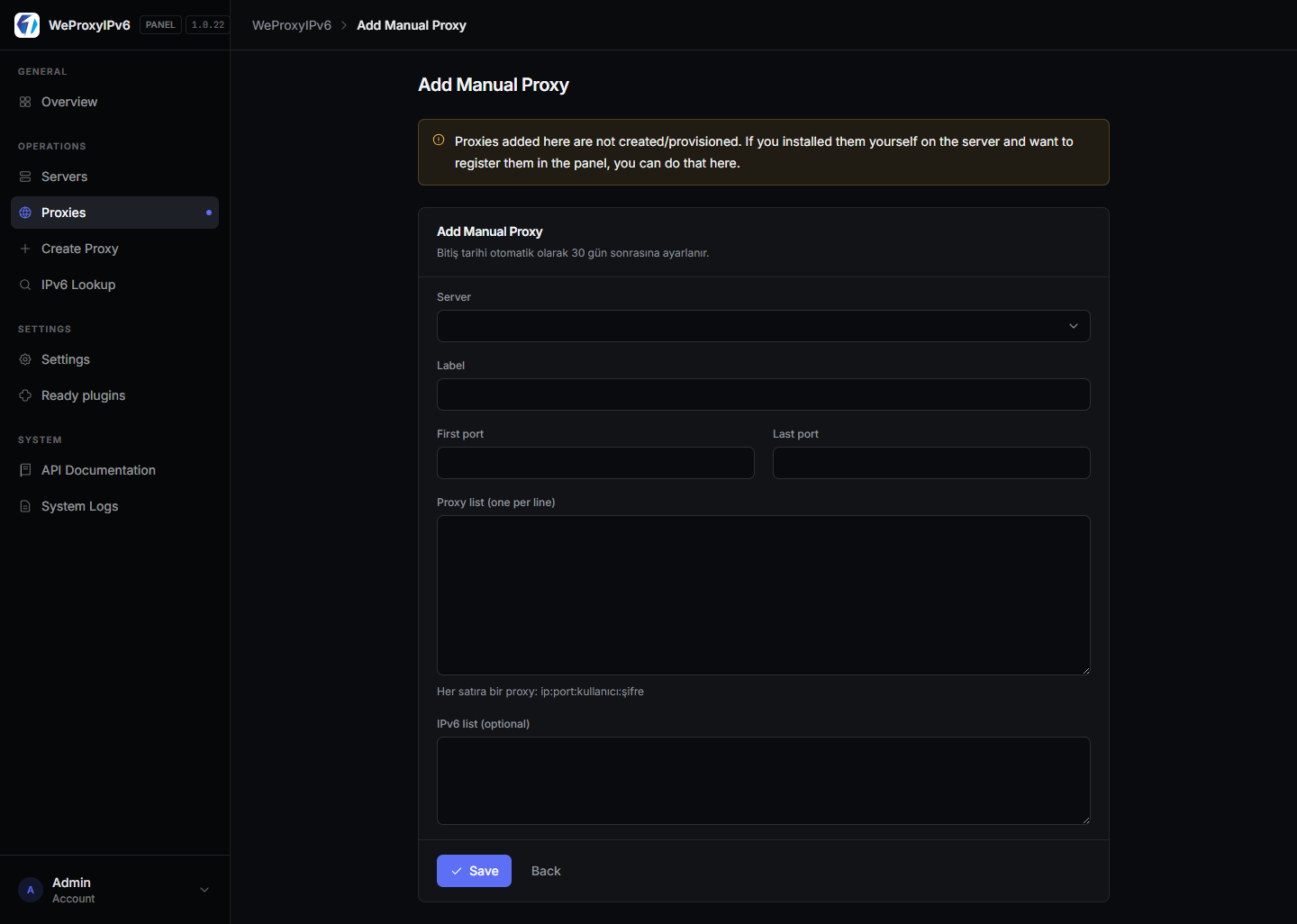
If the proxy is already running on the server and you only want it in the panel, use Add Manually. This does not provision on the server. Default expiry is 30 days.
7. IPv6 lookup
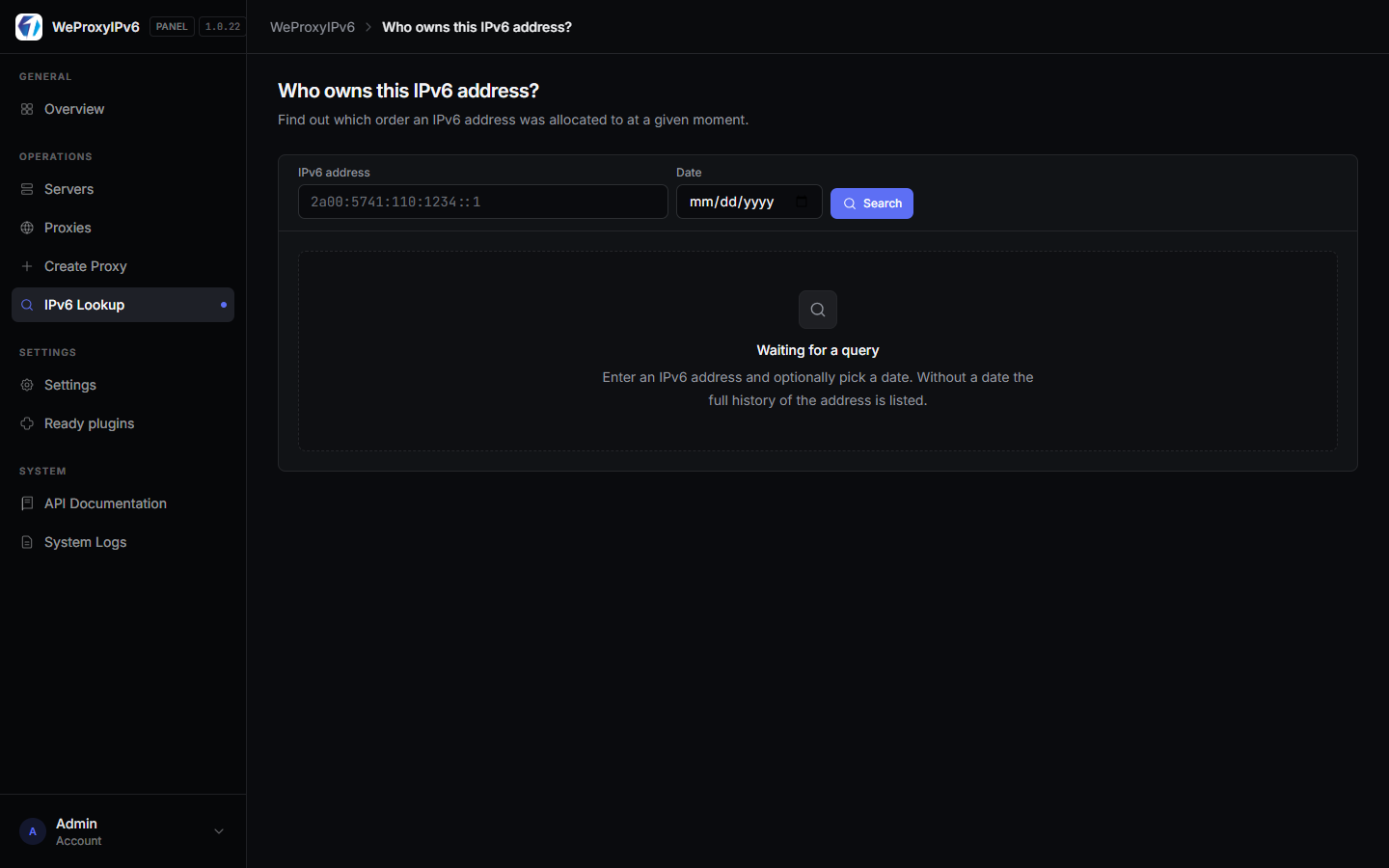
Use IPv6 Lookup to see which order an address belongs to and its allocation history.
8. WiseCP integration
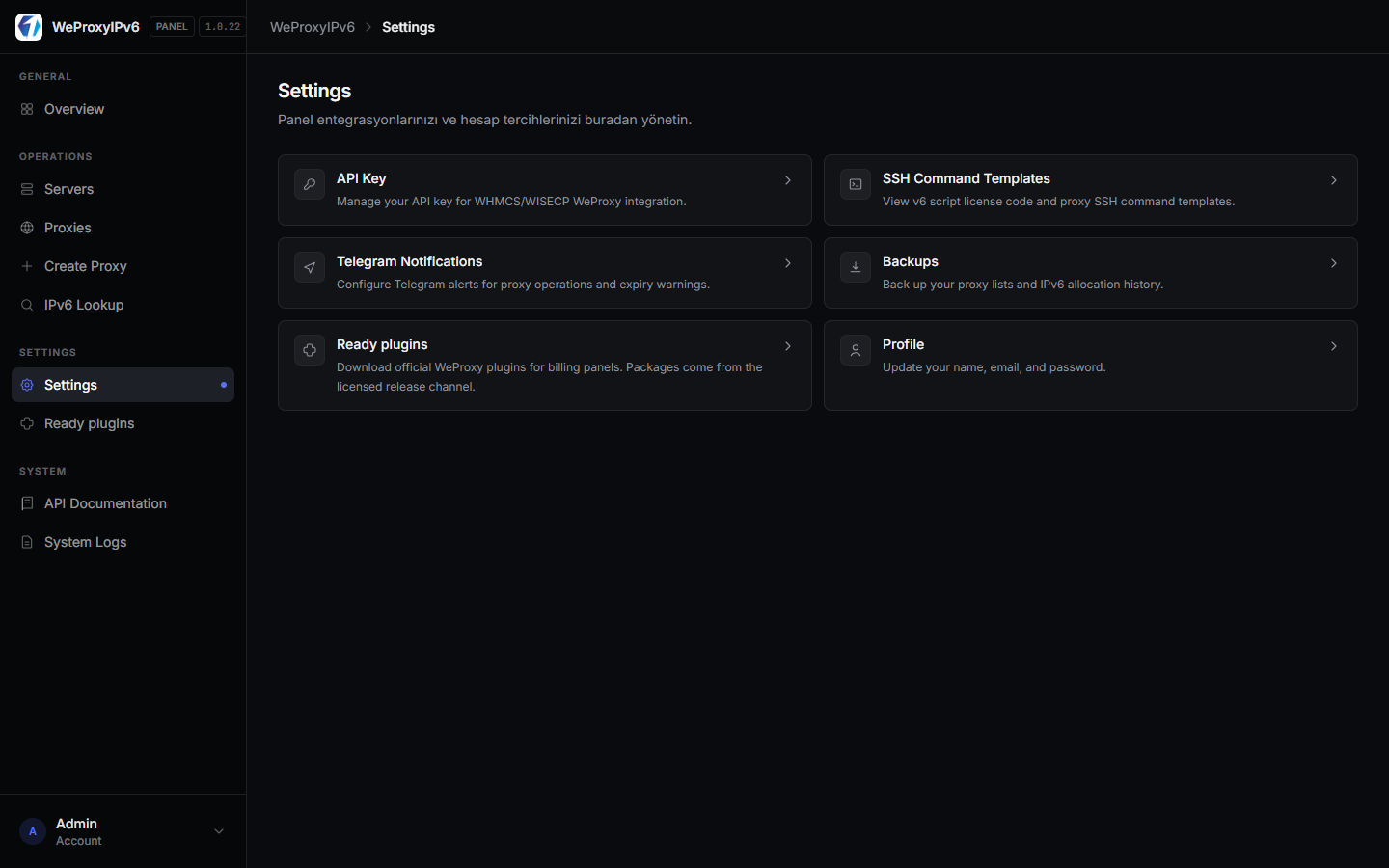
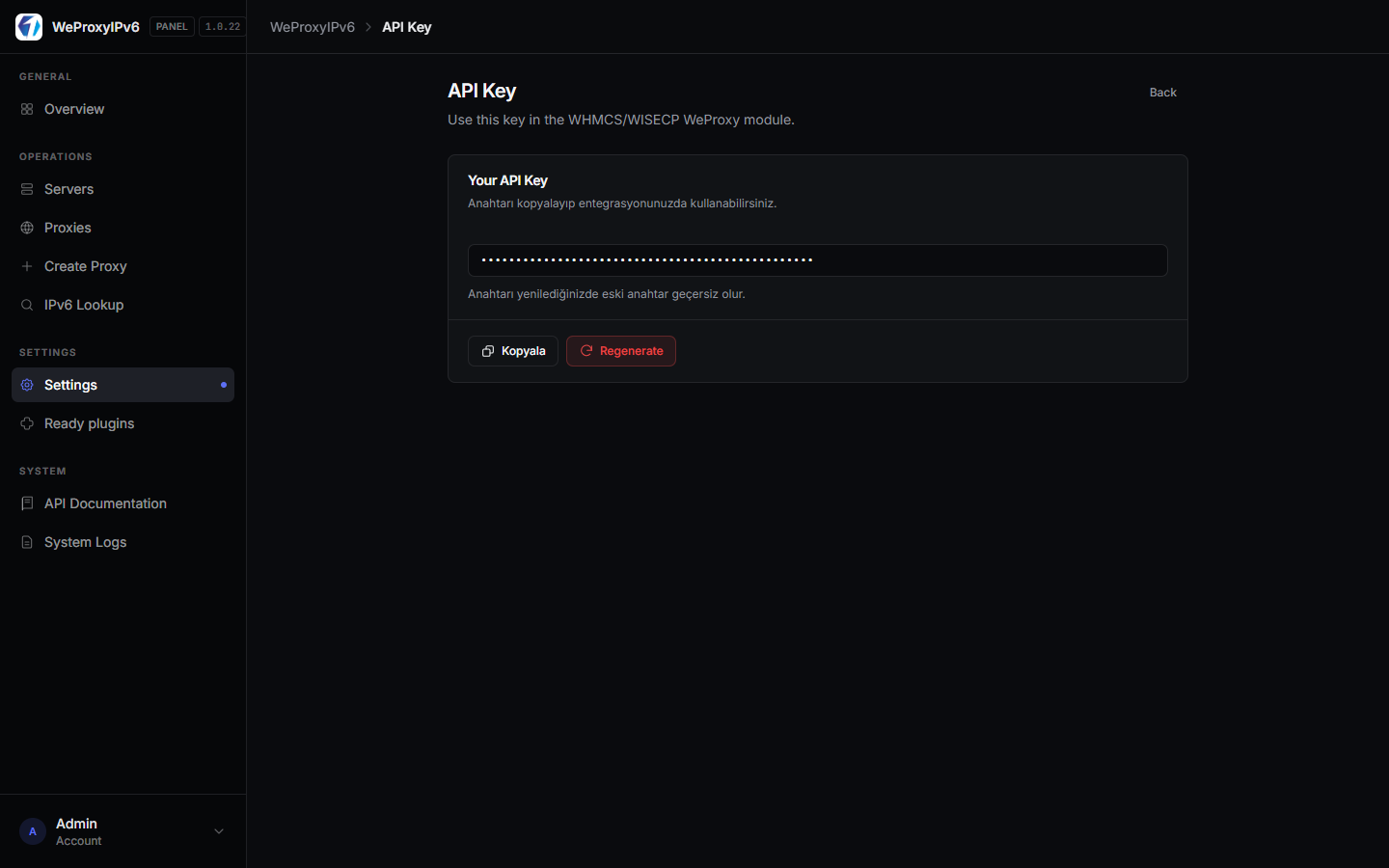
Copy the key from Settings → API Key into the WiseCP WeProxy product/module settings.
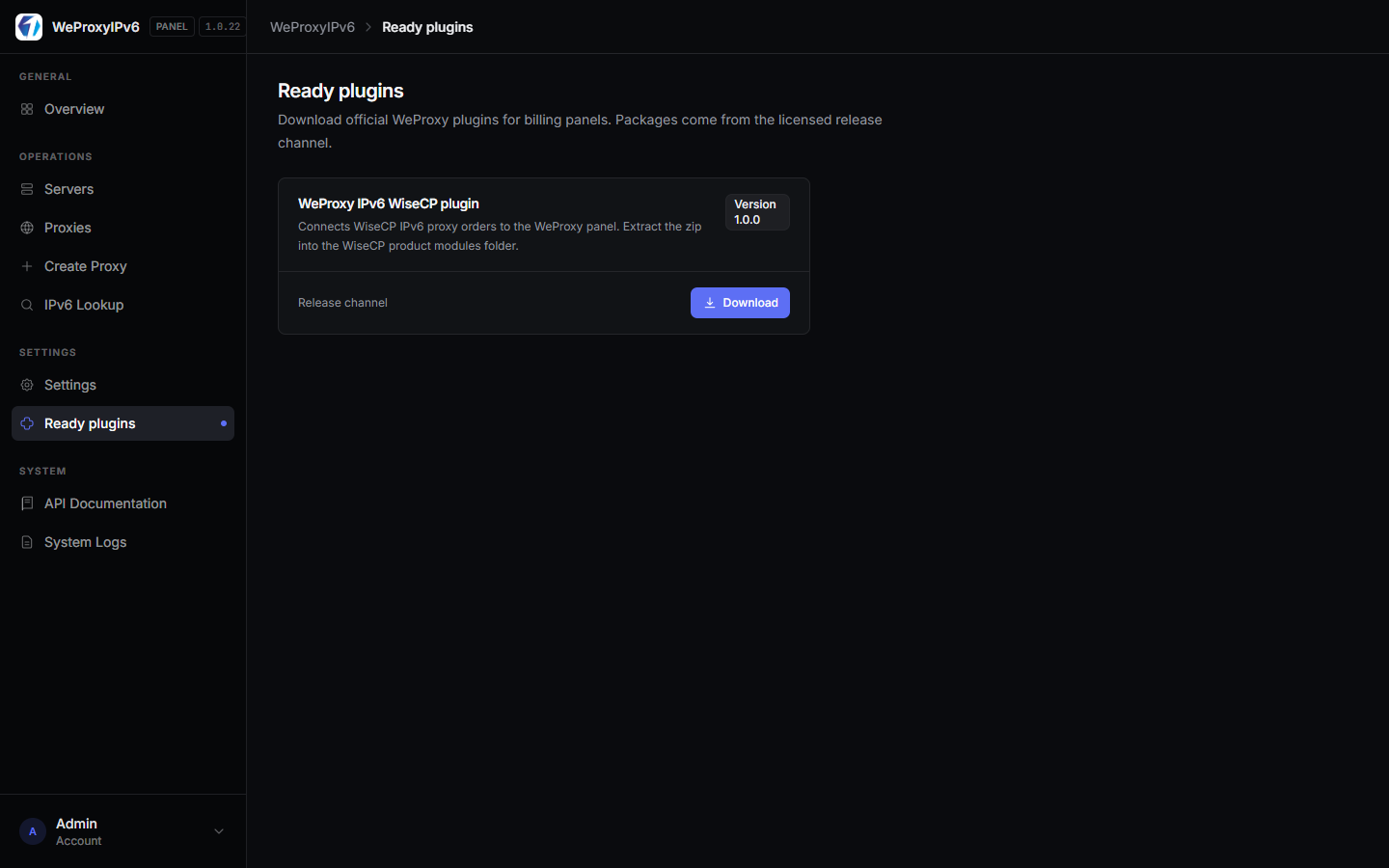
On Ready plugins, download the WeProxy IPv6 WiseCP plugin and extract the zip into the WiseCP product modules folder.
Endpoints and sample requests are on API Documentation. Authenticate with api_key in the body or the X-Api-Key header.
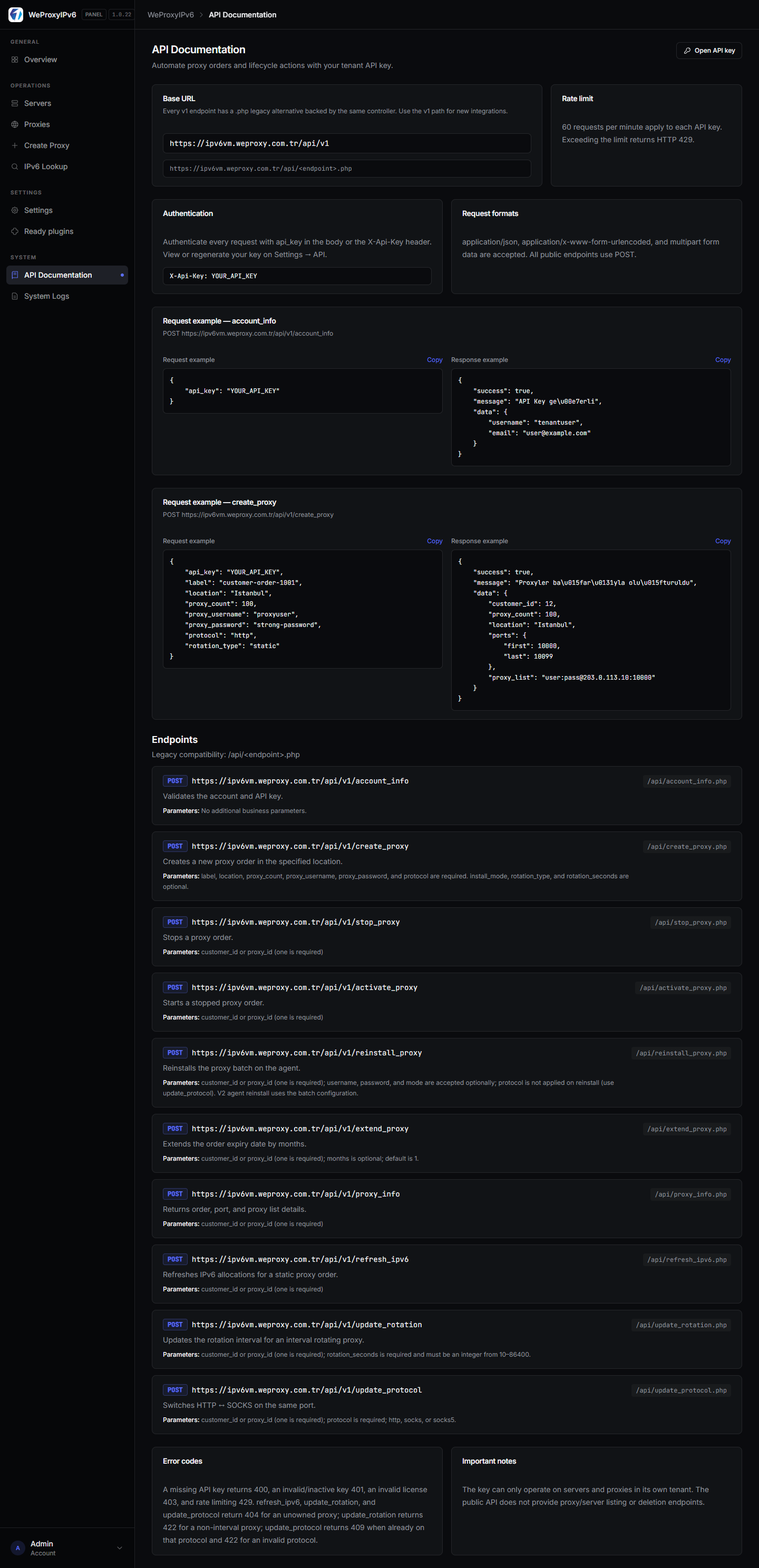
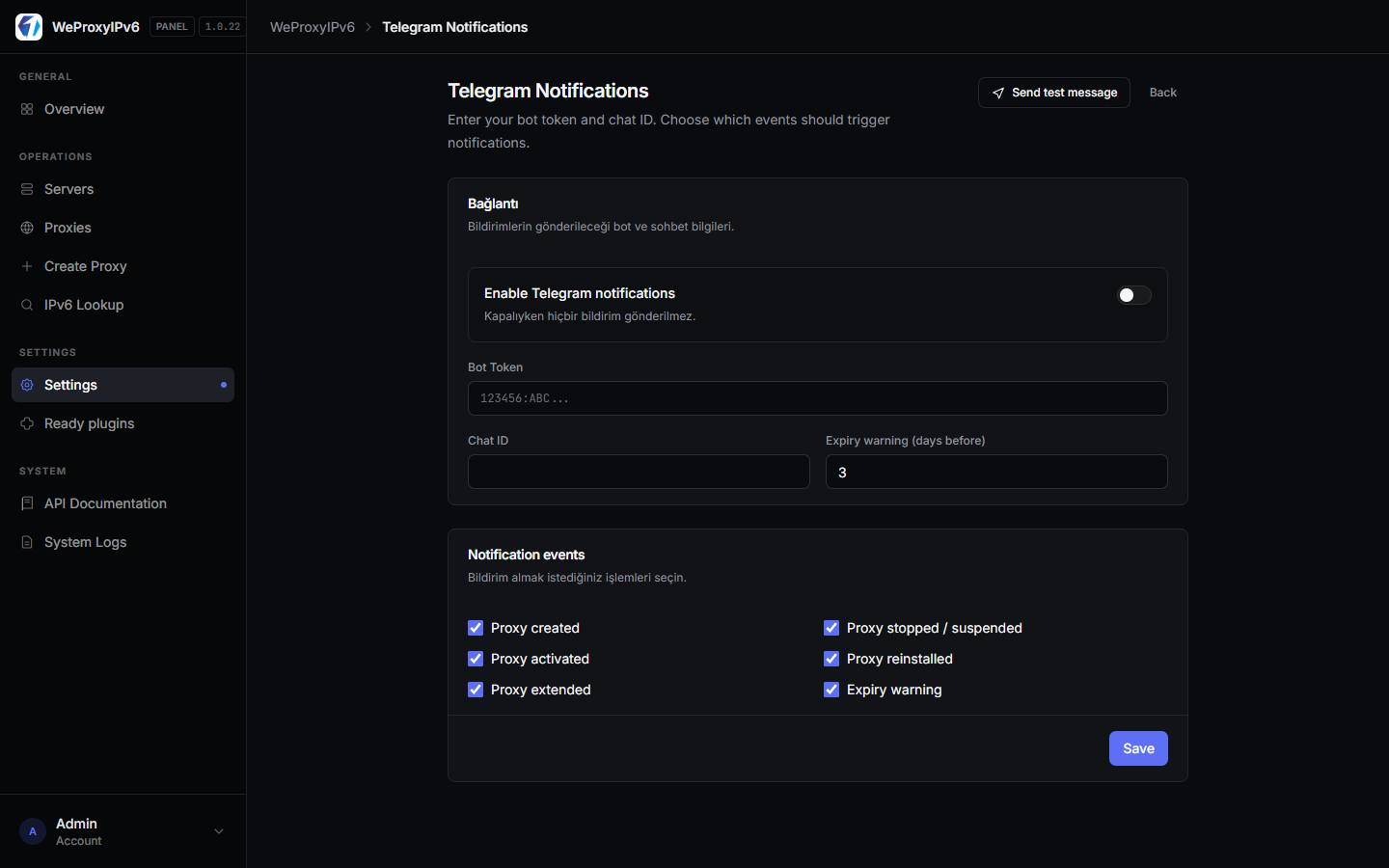
9. Telegram, backups, logs, profile
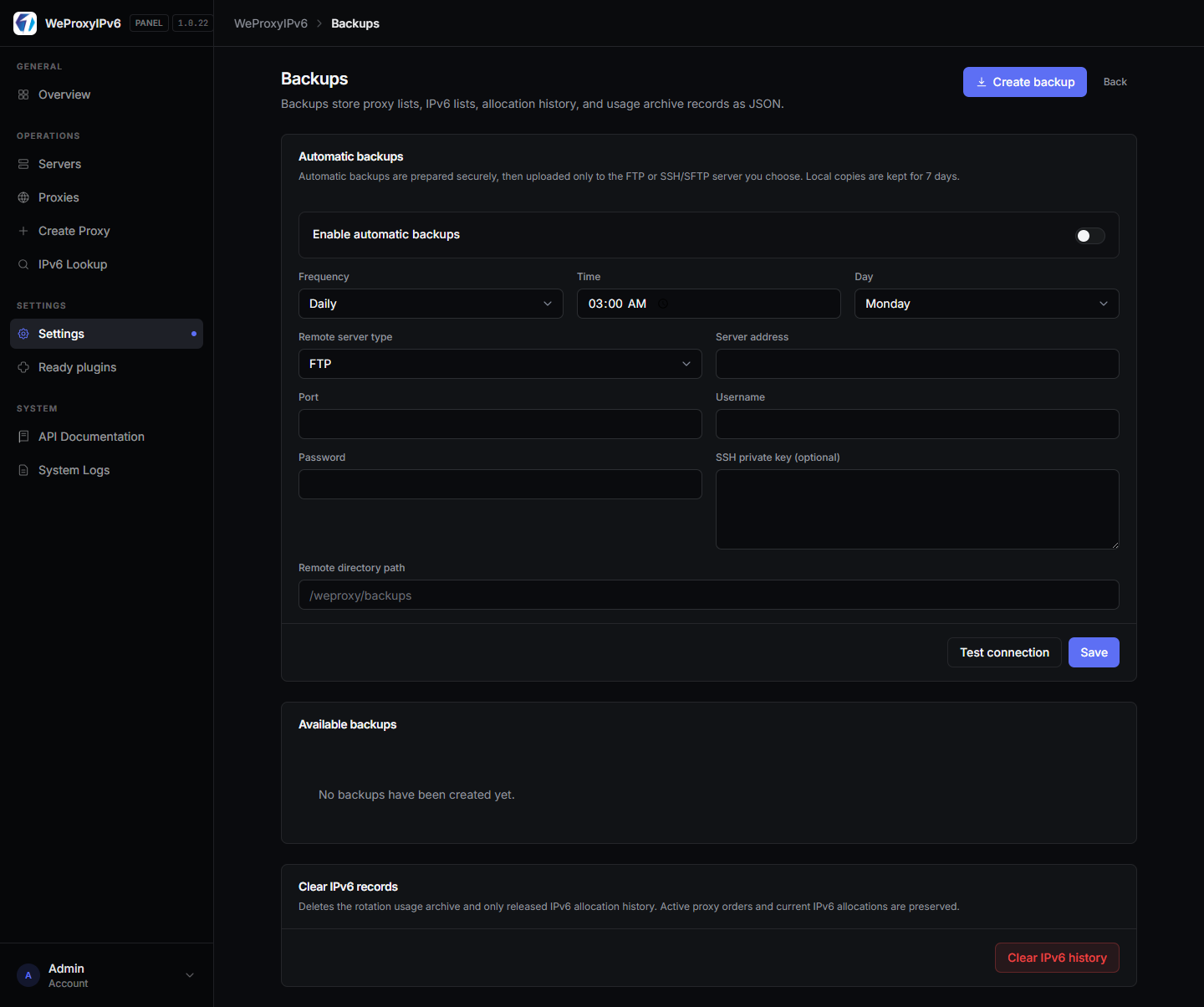
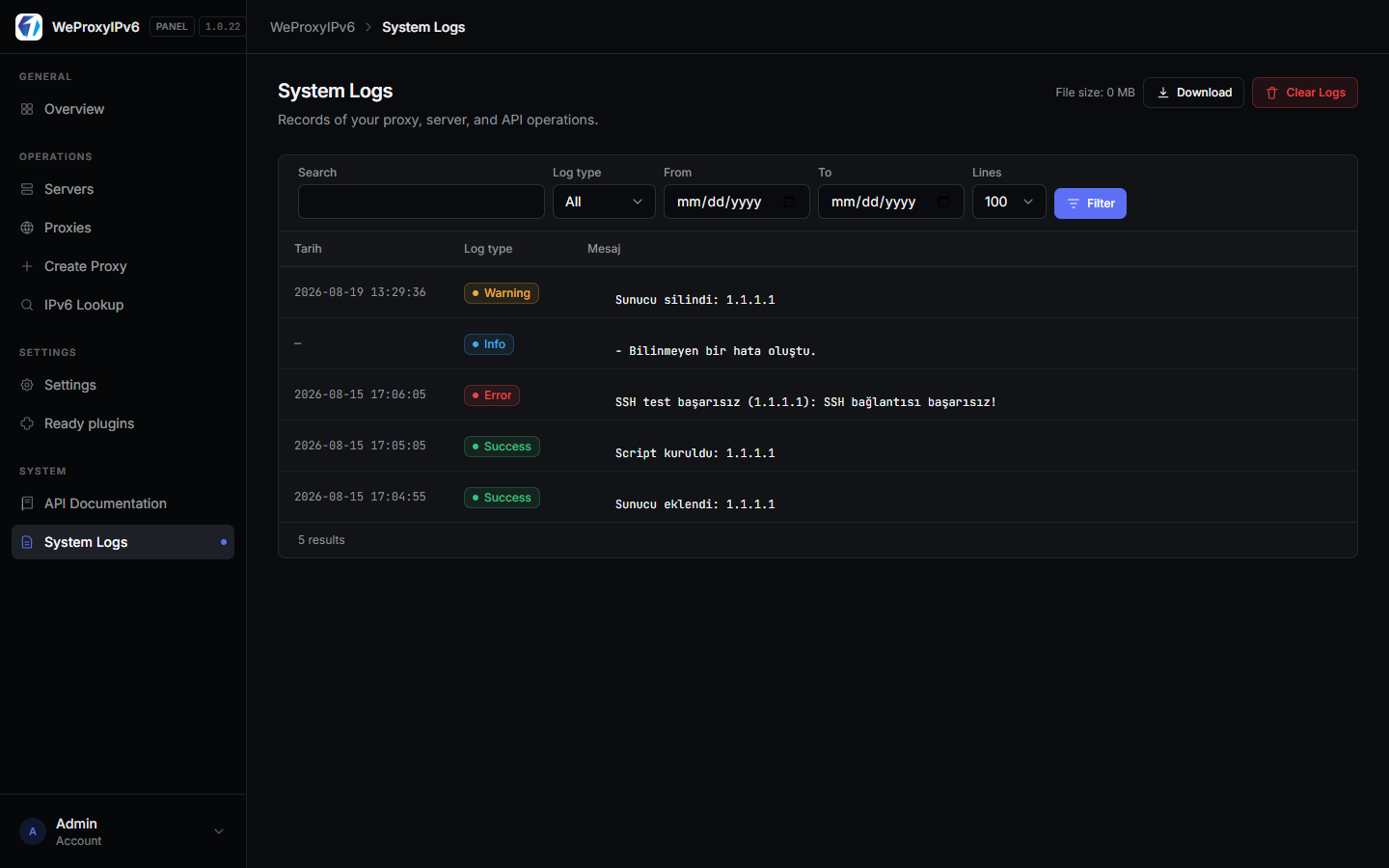
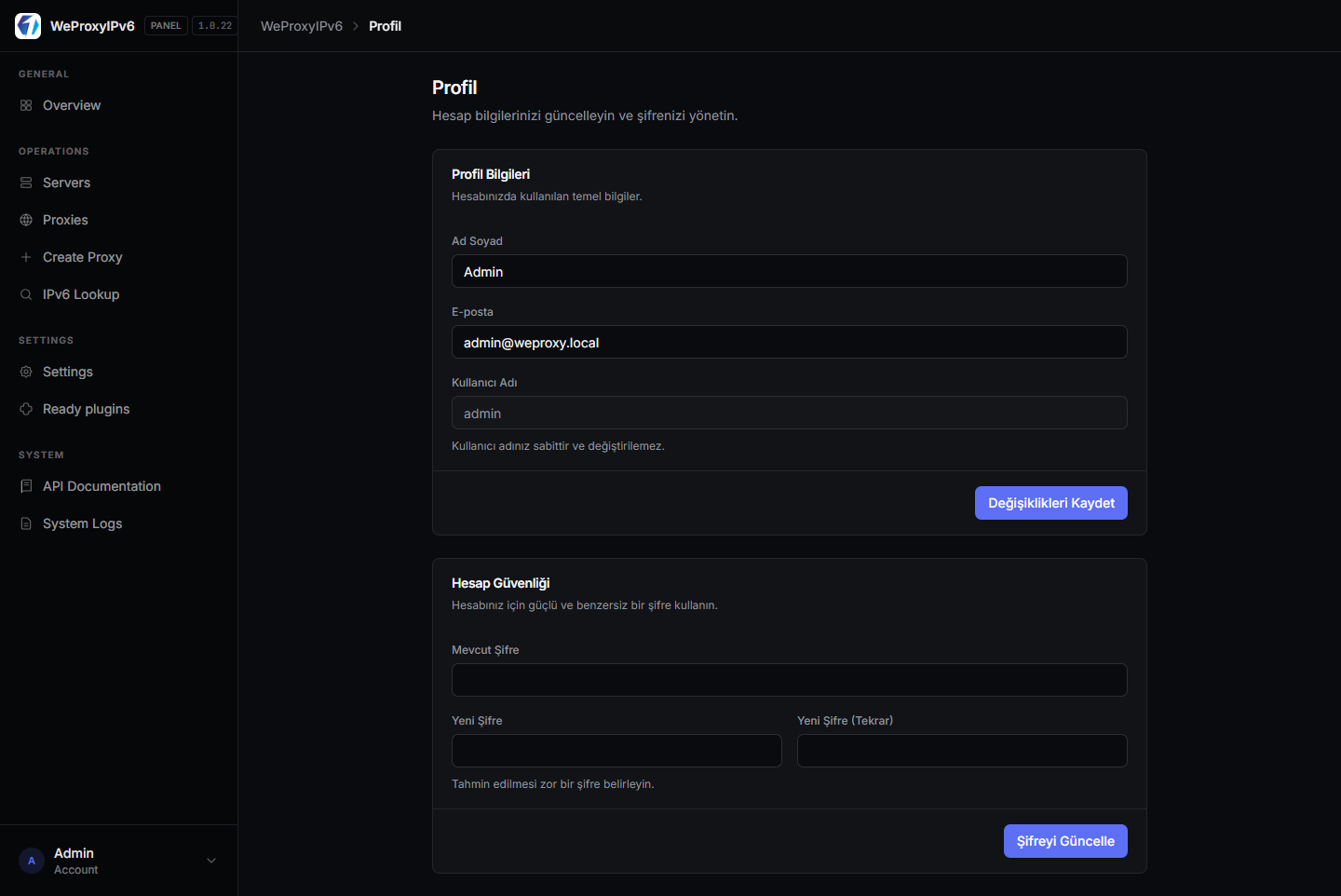
Telegram sends operation and expiry alerts. Backups store JSON archives and can upload to remote FTP or SSH/SFTP. System logs show panel activity. Profile updates name, email, and password.
10. FAQ and common errors
Read the red message first. The items below match the panel’s real error texts.
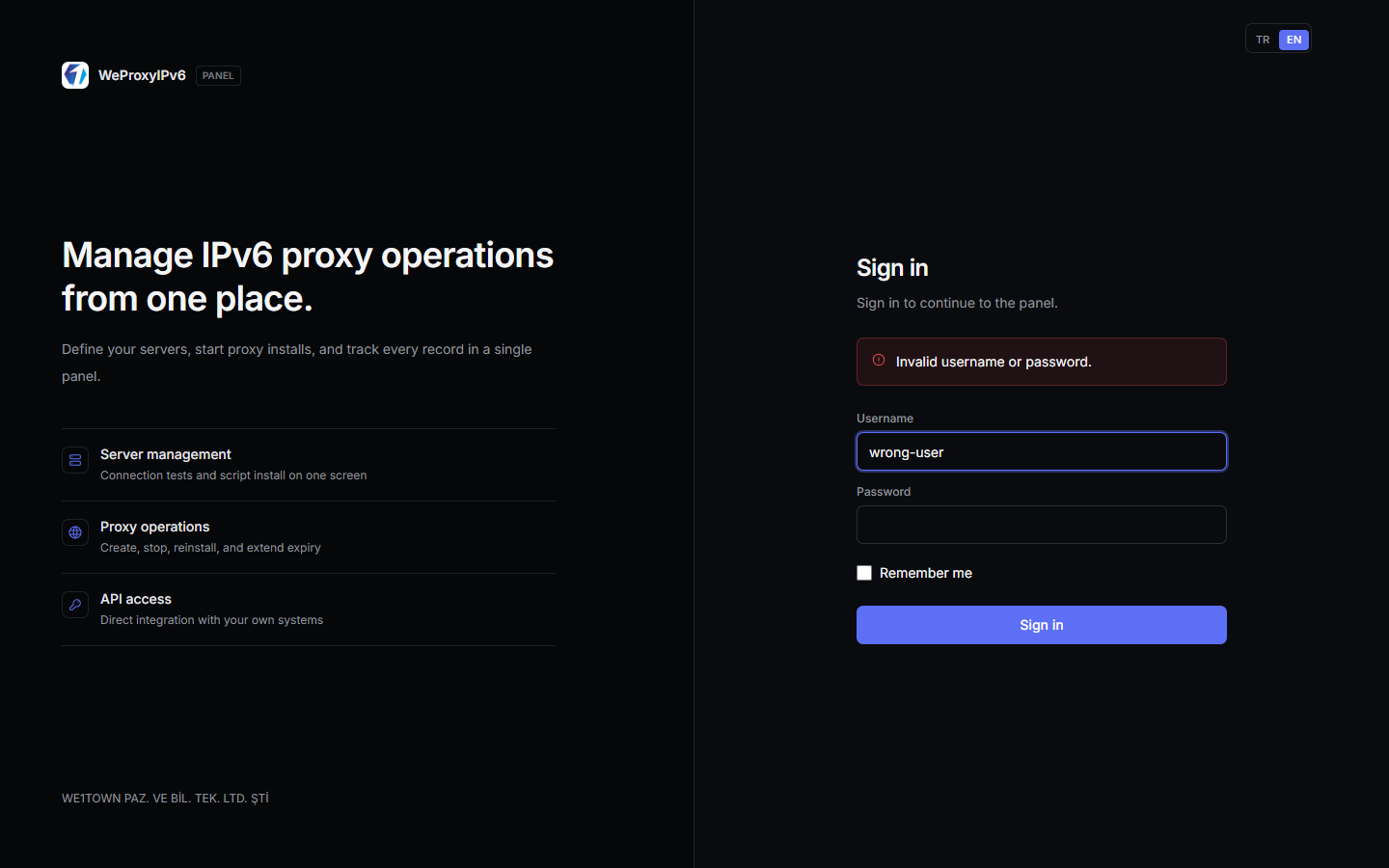
Sign in shows “Invalid username or password”
Username is not an email. After 5 failed attempts you are briefly locked out. Check Caps Lock and extra spaces from copy-paste.
I get sent back to the login page
Idle sessions expire after about 30 minutes. If you see that the account is suspended, the account is inactive; contact an administrator. Changing the password is not enough.
“Enter the v6 script license code before continuing”
CHANGE_ME or an empty license field locks Servers and Proxies. Save the v6 script code you were given. A WP-XXXX install license is separate (the /license page).
Create Proxy says no server has been added
Add a server first, Test it, then Install Script. Automatic create fails while script status is “Not installed”.
SSH / script errors
- Username or password is incorrect — fix the SSH credentials.
- Connection refused / port closed — SSH port and firewall.
- Timeout / unreachable — IP or network path.
- MaxStartups / connection dropped — wait a few seconds and retry.
- Your server quota is full — delete an old/inactive server or ask for a higher limit. Enable “Show inactive servers” if the list looks empty.
Install stopped halfway / no suitable server
Do not close the page until the job finishes. Location-based create needs an active server in that location with the script installed. The port range cannot exceed 65535. Interval rotation must be at least 10 seconds. Manual add does not install on the server.
IPv6 lookup
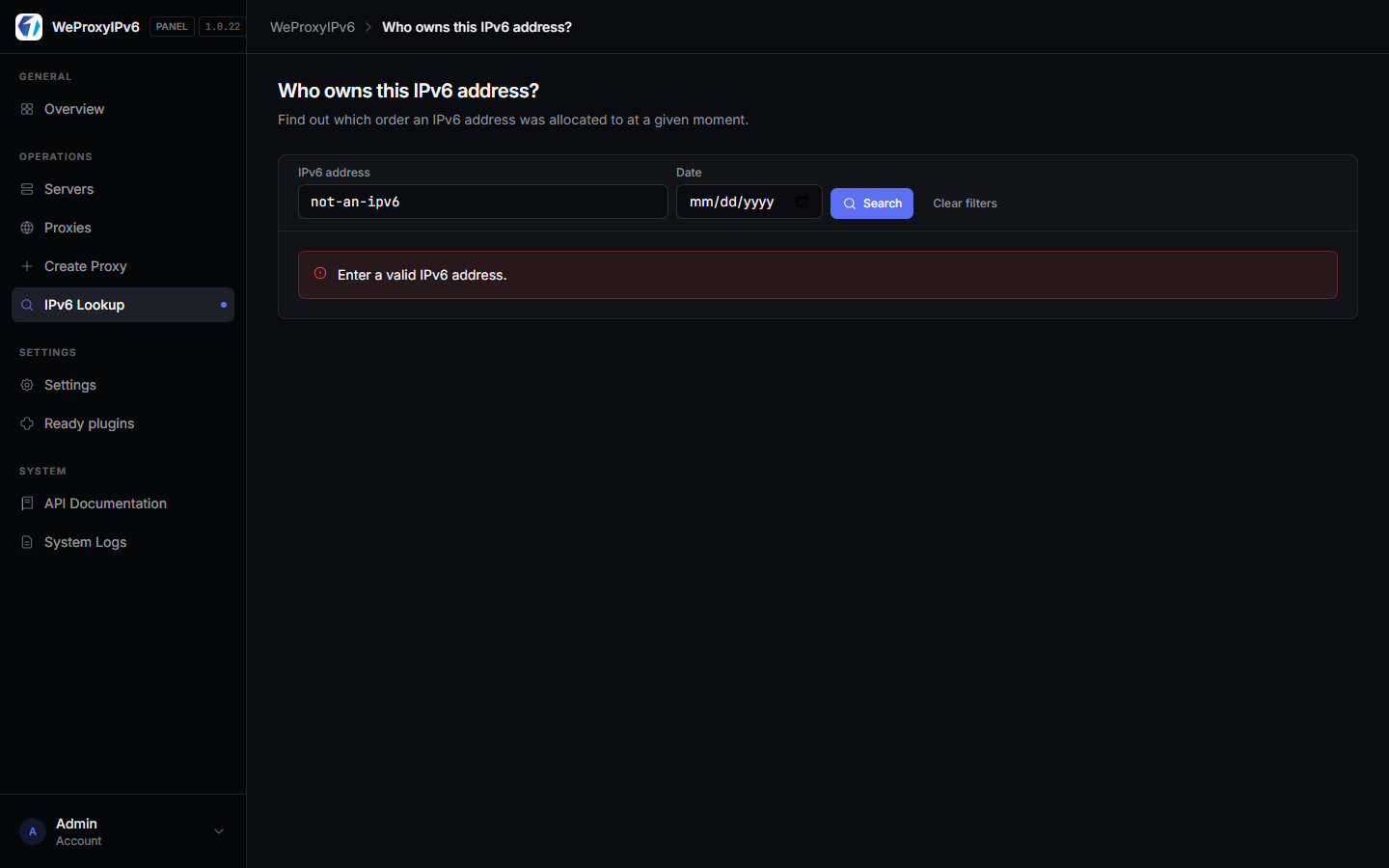
Invalid format: “Enter a valid IPv6 address.” IPv4 and free text are rejected.
WiseCP / API
If you regenerate the API key, update it in WiseCP as well. 400 missing key, 401 invalid or inactive key, 403 license, 404 not found, 409 same protocol, 422 validation, 429 more than 60 requests per minute.

 Turkey (Türkçe)

