How to Use weSeo? Installation and Usage Guide

MAIN SETTINGS
Total Hits to Send: The primary parameter specifying the total number of successful visits (hits/sessions) to be routed to the target website(s) throughout the operation.
Concurrent Browser Threads: Refers to the number of virtual browsers (threads) that will be launched in parallel and executed simultaneously, contingent upon system resources (CPU and RAM). This directly determines the processing volume and the speed at which the targeted hit count is achieved.
Single or Multiple Domains: The operational mode selection that determines whether the traffic simulation will be executed targeting a single domain or distributed across multiple listed domains.
Domain: The text input field where the primary web address (URL or Root Domain) for traffic routing is defined.
Keywords: Contains the search terms, separated by commas, to be utilized in SERP (Search Engine Results Page) simulations. It represents the queries the automation engine will execute on search engines.
Hit Type: Determines the access and routing methodology to the target site. This field configures Traffic Diversity scenarios, such as direct access (Direct), organic search (Organic), or routing from external sources (Referrer).
Select Speed Mode: The module that dictates the page loading, navigation, and interaction speeds within the automated sessions. It configures the velocity of the bot's behavior in accordance with the established strategy.
Delay Between Browser Launches (sec): Defines the minimum and maximum randomized delay (in seconds) injected between the initiation of each session. This prevents unnatural traffic spikes that could occur if concurrently initiated browsers (multi-thread) were to launch simultaneously.
Select Browser Language: Determines the language configuration to be deployed in the generated virtual browser sessions. This ensures that the Accept-Language headers within the digital footprint (Fingerprint) are accurately localized according to the targeted geographic region.
Disable Image Loading: An optimization preference that prevents the rendering (loading) of multimedia and visual elements on web pages. This is crucial for maximizing operational performance and minimizing bandwidth consumption, particularly during proxy-dependent operations.
PROXY SETTİNGS

Use Proxy: The primary toggle that dictates whether the proxy infrastructure will be activated and routed through during automation operations.
Proxy Type: The field where the characteristic category of the proxy network is selected. The system supports various infrastructures to match your optimization strategy:
- Mobile Proxy: Standard, single hardware mobile proxy connection.
- Multi-MobileProxy: Simultaneous management of multiple mobile proxy devices or pools for large-scale operations.
- Mobile Data: Utilization of the cellular data network directly connected to the system (e.g., 4G/5G modems), rather than an external proxy server.
- Proxy List: Integration of static or rotating proxy addresses into the automation via a predefined list format.
- Multi-Port Proxy: Connection architecture tailored for specialized proxy providers that offer multi-port routing.
- I using Mail and use weMail Proxy: A module that highlights the integrated nature of the WE1TOWN ecosystem. It synchronizes the proxy infrastructure defined in the weMail automation for concurrent use within weSeo simulations.
Mobile Proxy (ip:port:username:password): The authentication field where proxy access credentials are defined strictly using the industry-standard IP:Port:Username:Password syntax.
Mobile Proxy Reset Link (if available): The API endpoint provided by your Mobile or Rotating proxy supplier. The automation dynamically triggers this URL to forcefully request a hardware or software-level IP refresh (IP rotation) when necessary.
Proxy Type (Connection Protocol): Determines the standard network connection protocol to be established with the proxy server (e.g., HTTP, HTTPS). It must be precisely configured to match the format supported by your chosen proxy infrastructure.
Connect Proxy After Search?: An advanced traffic tunneling scenario. It configures whether the initial search engine query is executed over the primary network, with the system dynamically establishing the proxy connection only at the exact moment of the target site click-through.
Get new proxy if Captcha appears?: An autonomous fault-tolerance mechanism deployed to bypass search engine verification (Captcha) checkpoints. When enabled, if the system detects a Captcha, it terminates the current session, utilizes the defined reset link to acquire a pristine IP address, and ensures uninterrupted operations.
Corporate Recommendation Note: Utilizing fully compatible WE1TOWN Rotating Residential or Mobile Proxy infrastructures is highly recommended to achieve maximum Trust Score and operational efficacy.

FINGERPRINT SETTİNGS
The Fingerprint Settings module is an advanced security configuration area where the weSeo automation utilizes the weBrowser infrastructure to manipulate browser footprints, thereby generating a unique and authentic device identity for every individual session.
- Do you have a FingerprintSwitcher key?: The primary configuration field where you define the sourcing methodology for digital footprints during the operation. The system offers the following integration options:
- Yes: Activates the infrastructure of the external, third-party FingerprintSwitcher service. When selected, inputting the corresponding API key in the designated field below is mandatory.
- I have WE1 Fingerprints: Enables the utilization of the proprietary, highly-configured footprint pool integrated directly into the WE1TOWN ecosystem. Utilizing this in-house infrastructure is highly recommended for maximum system stability, speed, and optimal Trust Scores.
- No: Disables the integration of a dedicated custom footprint service.
- FingerprintSwitcher API Key: The text input field where the unique Application Programming Interface (API) key, obtained from the third-party footprint service provider, is entered for system access and authentication.
- Select Device: Determines the hardware architecture that the simulated sessions will emulate. It allows you to configure the traffic profile (Desktop or Mobile) at a hardware level, ensuring alignment with your overarching SEO strategy.
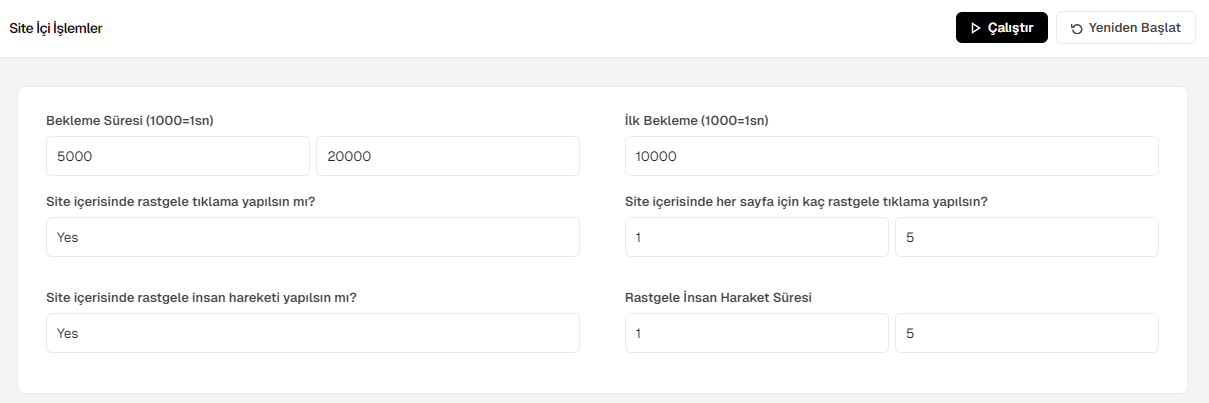
In-Site Operations (Visitor Behavior)
The In-Site Operations module is a critical area where you configure the behavioral patterns the weSeo automation will exhibit after successfully landing on the target website. The metrics in this screen are strictly designed to bypass bot-detection mechanisms by presenting the session as a genuine, high-quality user interaction to search engine algorithms.
- Wait Time / Bekleme Süresi (1000=1sec): Defines the minimum and maximum limits (in milliseconds, e.g., 5000 - 20000) for the delay between page transitions, clicks, or any interaction. By randomizing the delay between these two variables, the system breaks predictable patterns and injects maximum authenticity into the browsing flow.
- Initial Wait / İlk Bekleme (1000=1sec): The exact duration (in milliseconds) the system will idle upon initially loading the target URL before initiating any actions. This simulates the natural cognitive delay of a real user observing and comprehending the page content upon first entry.
- Perform random clicks within the site?: When activated, this toggle enables the automation to autonomously perform randomized clicks on links, buttons, or blank spaces within the visited page. This directly boosts the session's Interaction Rate.
- How many random clicks per page?: A tolerance range that specifies the minimum and maximum number of random clicks to be executed on each individual page, provided the random click feature is enabled.
- Perform random human movements within the site?: Rather than maintaining a static, idle presence, this setting activates the "Human Behavior Simulation." It commands the system to execute asymmetrical mouse tracking and smooth vertical scrolling (up/down). This serves as the most robust defense against advanced anti-bot systems and behavioral analytics tools.
- Random Human Movement Duration: Defines the minimum and maximum time limits during which the simulated mouse movements and scrolling actions will be continuously sustained. During this phase, the system perfectly emulates an attentive user reading an article or examining a product.

Mail & Cookie Settings
The Mail & Cookie module is a highly strategic component designed to elevate the automation from a mere anonymous bot to a "verified, logged-in Google user." By executing operations with active Gmail sessions and historical cookie data, this system maximizes the Trust Score within search engine algorithms and establishes persistent user profiles.
- Use Mail: The primary toggle determining whether the system will execute SERP and on-site simulations as a logged-in user utilizing the provided mail pool.
- Mail List: The directory path defining where the data file containing the Google (Gmail) account credentials (username, password, recovery mail) is located and integrated into the automation.
- If Gmail is not active?: Defines the autonomous protocol the system will follow if it encounters login issues, such as a security checkpoint, incorrect password, or a disabled account. The system offers three distinct protocols:
- Stop: Immediately halts the current browser thread upon detecting an error, preventing unnecessary resource consumption.
- Stop and delete mail files: Halts the operation for the compromised account and automatically purges its associated session files from the system. This critical feature ensures your account pool remains clean and highly functional.
- Continue: Commands the system to bypass the login failure and proceed with the traffic simulation as an anonymous visitor without interrupting the workflow.
- Cookie Folder (General): The directory path for integrating pre-created cookie files hosted locally on the device into the automation. By utilizing these ready-made, local session data files, the system efficiently presents a direct, organic, and highly trusted user profile to search engines.
The Captcha Settings module is the integration area developed to autonomously bypass bot-verification (Captcha) checkpoints that may arise during intensive search engine queries (SERP) or on-site navigation. This system utilizes external third-party resolution services to ensure that operations continue seamlessly, completely uninterrupted by human intervention.

Captcha Resolution Settings
- Solve Captcha?: The primary toggle that dictates whether the automation should actively attempt to resolve a detected verification screen using an external service.
- Select Captcha Service: The menu where you designate the supported third-party API infrastructure that will execute the Captcha resolution. weSeo is fully integrated with the following services:
- 2captcha-newapi: The infrastructure for 2Captcha, a comprehensive and widely utilized resolution service.
- rucaptcha-newapi: The RuCaptcha infrastructure, often preferred for specific geographic regions.
- antigate-newapi: The Anti-Captcha (Antigate) infrastructure, providing an alternative resolution provider.
- Captcha API Key: The text input field where the unique Application Programming Interface (API) key—obtained from your chosen resolution service's dashboard—is entered. This key provides the system with balance access and authorization; without it, the resolution process cannot be initiated.
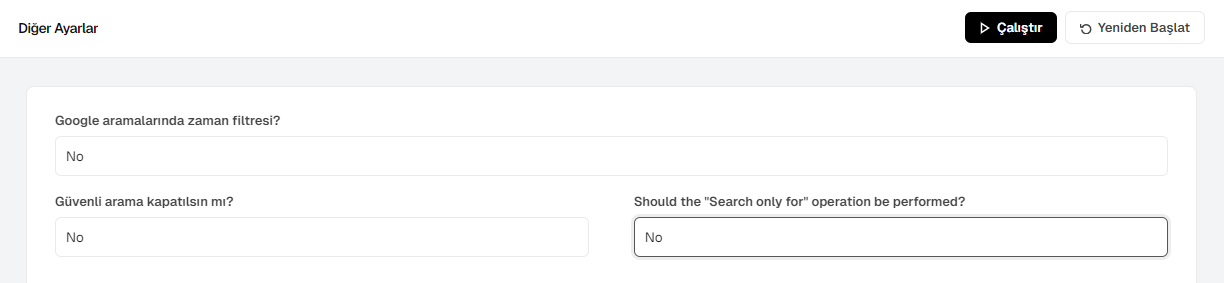
Other Settings (Advanced Search Filters)
The Other Settings module contains specific configurations that manipulate the search engine's behavior and result listings during the Google SERP simulation. These parameters are utilized to optimize the accessibility of your target site based on unique circumstances in the search results (e.g., newly indexed pages or exact-match keyword variations).
- Time filter in Google searches?: Determines whether the automation should apply a time-based filter to narrow down search results to a specific timeframe (e.g., past 24 hours, past week). This allows the system to rapidly locate and interact with fresh content or newly indexed pages on the SERP.
- Turn off safe search?: The field where you choose whether to disable the Google SafeSearch protocol during the simulation. This is utilized to prevent the omission or censorship of search results, depending on the specific niche or category of your target website and keywords.
- Should the "Search only for" operation be performed?: An autonomous command deployed when the search engine detects a potential typo and automatically displays results for an alternative, auto-corrected query. When enabled, the bot autonomously clicks the "Search instead for" (or "Search only for") prompt on the results page, compelling the engine to execute the operation strictly based on your exact, original keyword (exact match).
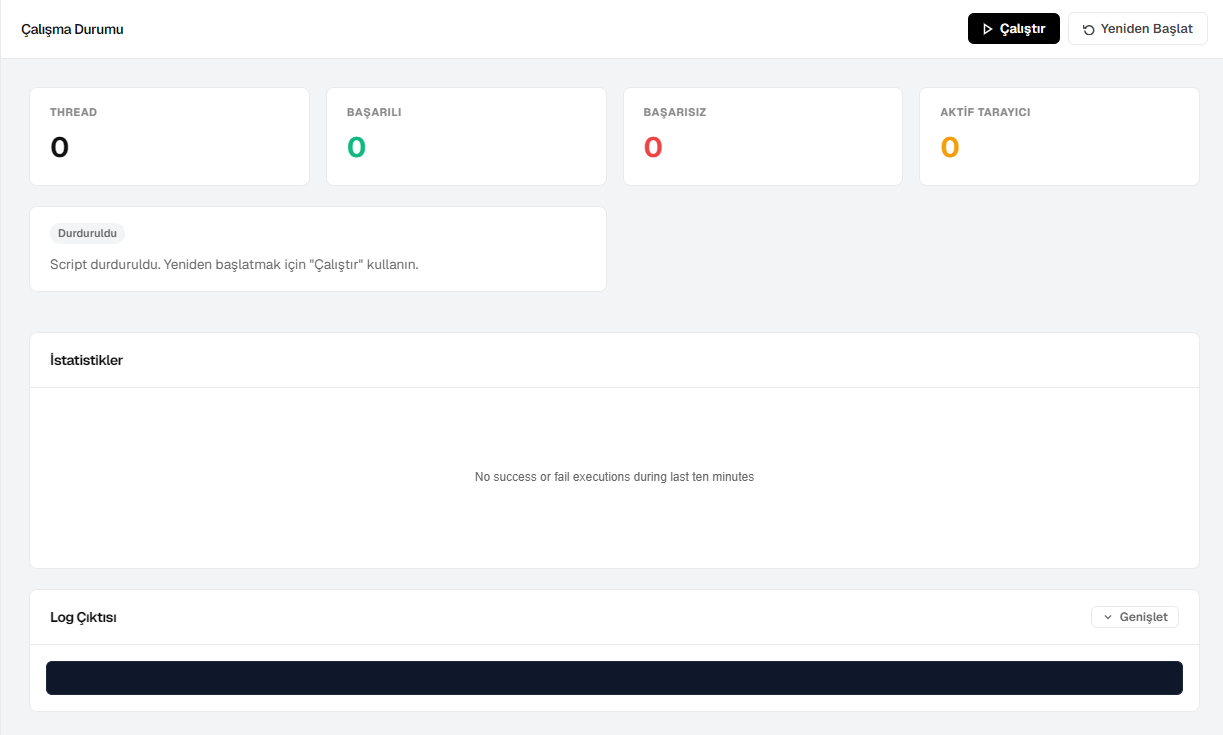
Operation Status (Live Monitoring & Logs)
The Operation Status module is the primary dashboard where you monitor the real-time performance, success/failure metrics, and operational details of the weSeo automation. This screen provides full transparency, allowing you to seamlessly analyze the trajectory of your campaigns.
- THREAD: Displays the total number of active worker threads currently executing in parallel in the background.
- BAŞARILI (SUCCESSFUL): The total count of completed sessions that have flawlessly executed all defined tasks, including SERP simulation, site entry, and behavioral navigation.
- BAŞARISIZ (FAILED): The number of sessions that failed to complete due to environmental factors such as connection drops, invalid proxies, or target page rendering timeouts.
- AKTİF TARAYICI (ACTIVE BROWSER): Represents the exact number of virtual browser windows currently open and actively sustaining the simulation operation.
- Status Notification Board: The information panel displaying the current operational state of the script (e.g., Stopped, Running).
- İstatistikler (Statistics): The performance metric area that reflects success and failure rates over recent periods (e.g., the last 10 minutes).
- Log Çıktısı (Log Output): The developer/monitoring console where every single background action executed by the software (e.g., proxy authentication, browser launch, site entry, delay periods, potential error codes) is chronologically logged second-by-second.

 Turkey (Türkçe)

